New Payroll, Time of Day Slots, Smarter Rescheduling, & More
Rescheduling just got smarter, Engagement Settings got a full revamp, Payroll has been rebuilt, and Anytime Visits can go right on your schedule. Here's the quick version!
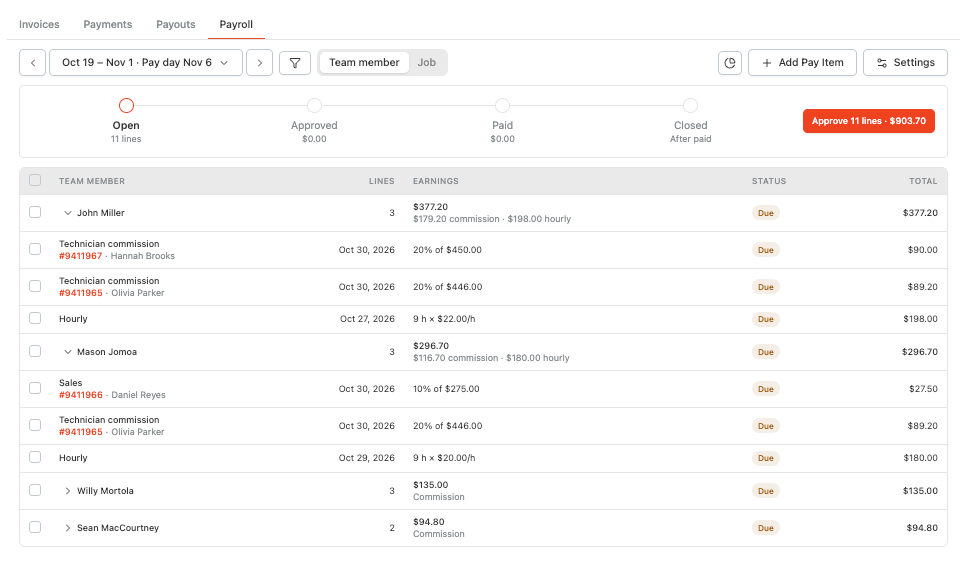
The New Payroll
Payroll has been rebuilt from the ground up. It's faster and gives you far more control over how your team gets paid.
Clear pay status: every amount owed moves from Due → Approved → Paid, so you always know what's been reviewed and paid
Pay periods: pick Weekly, Every 2 weeks, Twice a month or Monthly. Close a period once it's paid so nothing changes, and late changes roll into the next one automatically
View by team member or by job: switch Group by to Job to see each job, who's paid on it and why
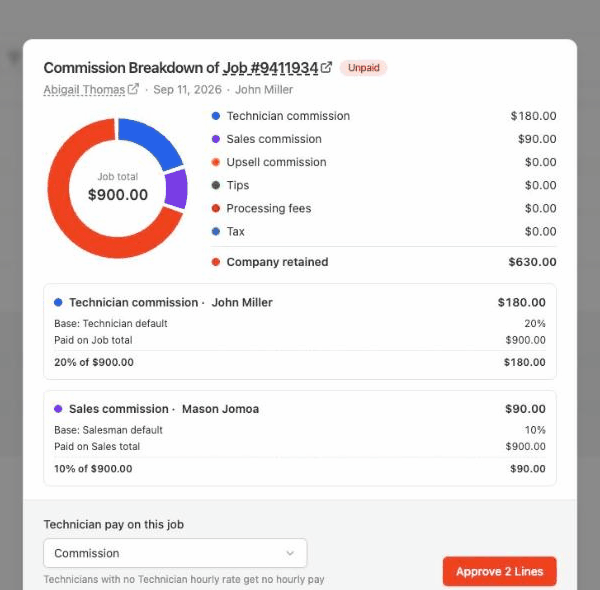
See the math: click any job number to see who earned what and why
Payroll alerts: get a heads-up when a period is ready to approve, pay day is tomorrow, or someone is missing a pay rate
Commission Your Way
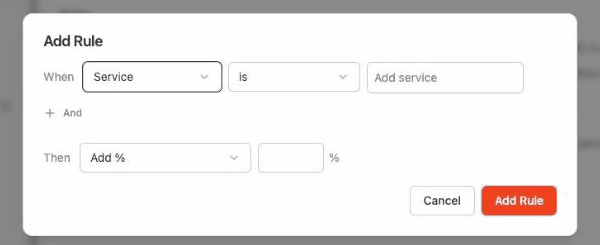
Flexible rates: set commission by role, person, service or plan frequency, then add rules like +5% on Holiday Lighting
Crews: choose per service whether a crew gets full rate each, splits evenly, or splits by time on the job
Upsells: choose whether upsold items count toward technician commission
Job overrides: pay one job's technicians hourly, commission and hourly, or nothing at all
Bonuses, Deductions, Residuals & Clawbacks
Bonuses & deductions: click Add Pay Item to give a one-off deduction or bonus (like $25 for a 5-star review)
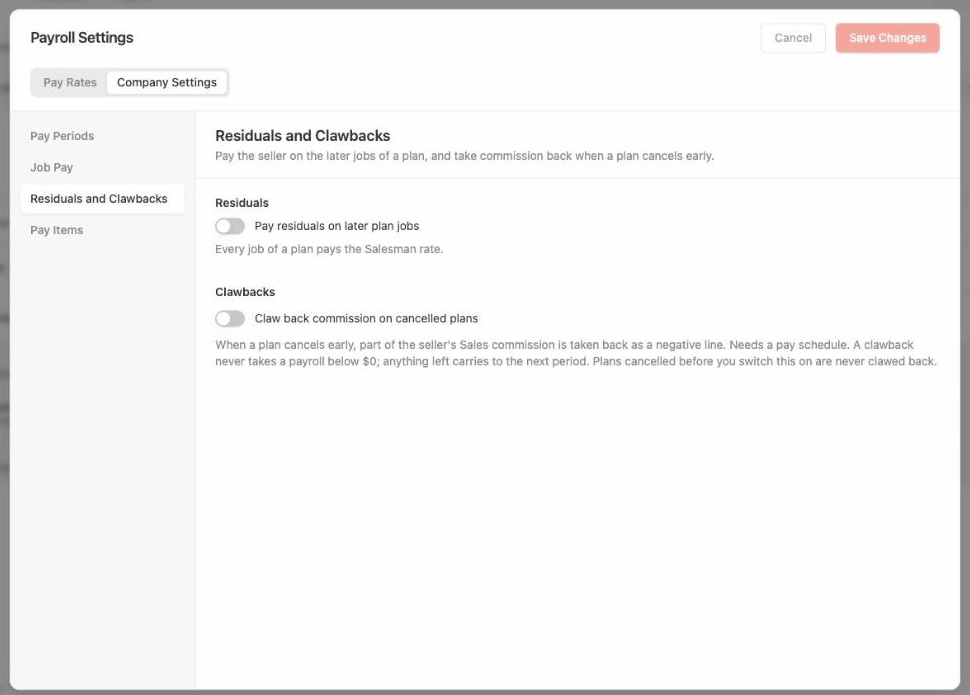
Residuals: keep paying the seller on a service plan's later jobs at a rate you choose
Clawbacks: take back sales commission when a plan cancels early, and undo it automatically if the customer is saved
Residuals and clawbacks are off by default, so nothing changes until you turn them on. Find this under your Payroll Settings.
Learn more in the Payroll guide:
https://helpcenter.getrotor.com/en/articles/1739578-payroll
Learn more about Residuals & Clawbacks:
https://helpcenter.getrotor.com/en/articles/4836556-residuals-and-clawbacks
Anytime Visits on the Schedule
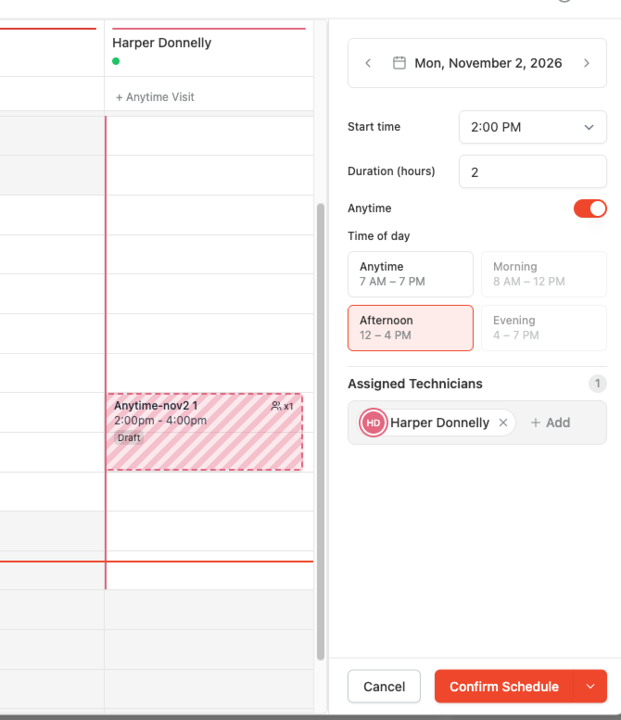
Put them on the schedule: place an anytime visit on a time slot for a specific tech or crew. The customer still sees it as an anytime visit, and it shows with zebra stripes so your team can spot it
Pick a time of day: Anytime, Morning, Afternoon or Evening, on web and mobile
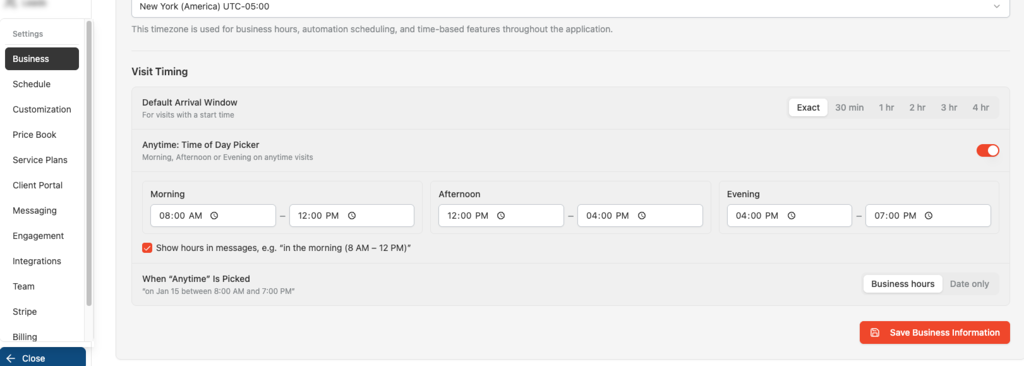
Control what customers hear: in Settings → Business → Visit Timing, set the hours for each time of day, show those hours in messages, choose whether "Anytime" shows business hours or just the date, and set a default arrival window (Exact, 30 min or 1–4 hr)
Learn more about Anytime Visits:
https://helpcenter.getrotor.com/en/articles/9544129-anytime-visits-time-of-day-and-scheduling
Smarter Rescheduling
Moving or scheduling a visit now gives you more control:
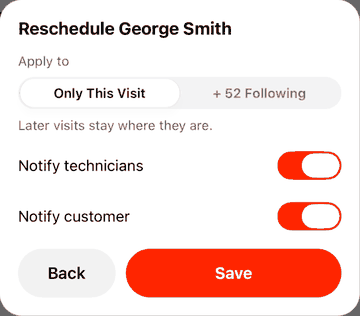
Apply to: move Only This Visit, or this visit and all following visits on the plan
Notify technicians / Notify customer: choose who gets a heads-up when you save
Confirm before you drag: dragging a visit on the web Schedule now asks you to confirm first
Options only show when they apply, based on your Messaging settings.
Business Hours in Workflows
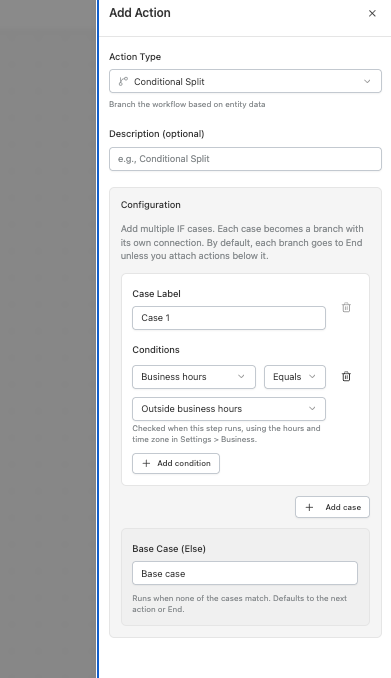
A Conditional Split can now branch on whether a step runs inside or outside your business hours, using the hours and time zone from Settings → Business. Find it under Conditional Split → Condition → Business hours.
More Updates
Inbound email in Rotor: customer email replies now land in your Rotor Inbox alongside texts. Set it up under Settings → Engagement (learn more)
Quick Contact Panel: open the side panel in any Inbox conversation to see customer details, text or email, mute, or open their portal
Videos on customer profiles: upload property walkthroughs to Attachments on web and mobile (
Turn off card payments in the Client Portal: turning off card and bank payments hides online payment, even with a payment account connected
Fixes & Polish
Faster clock-in: clocking in on mobile is quicker
Payment type on mobile invoices: see how an invoice was paid right in the mobile app
Partial payments: card charges, payment links and Tap to Pay now charge the remaining balance instead of the full invoice total
Rotor email notifications: have been redesigned and show more detail for Quote Options being approved
Review the Latest Updates
Log in to Rotor and review these updates and articles with your team. Reach out to us directly via our in-app support with any questions and we are happy to coordinate.
Keep in touch!
If you’re curious about Rotor or would like to learn more, we’d love to meet you! We feel super blessed to work alongside such a great industry and love helping our companies succeed.
👉 BOOK TIME WITH US: https://calendly.com/noah-getrotor/30min
Follow the journey on Instagram @get_rotor
Have feedback on any of these? We want to hear it. Reach out through the Discord community, the in-app chat, or email us at support@getrotor.com.
- The Rotor Team