Updates

Follow new updates and improvements to Rotor.

New Payroll, Time of Day Slots, Smarter Rescheduling, & More
Rescheduling just got smarter, Engagement Settings got a full revamp, Payroll has been rebuilt, and Anytime Visits can go right on your schedule. Here's the quick version!

The New Payroll

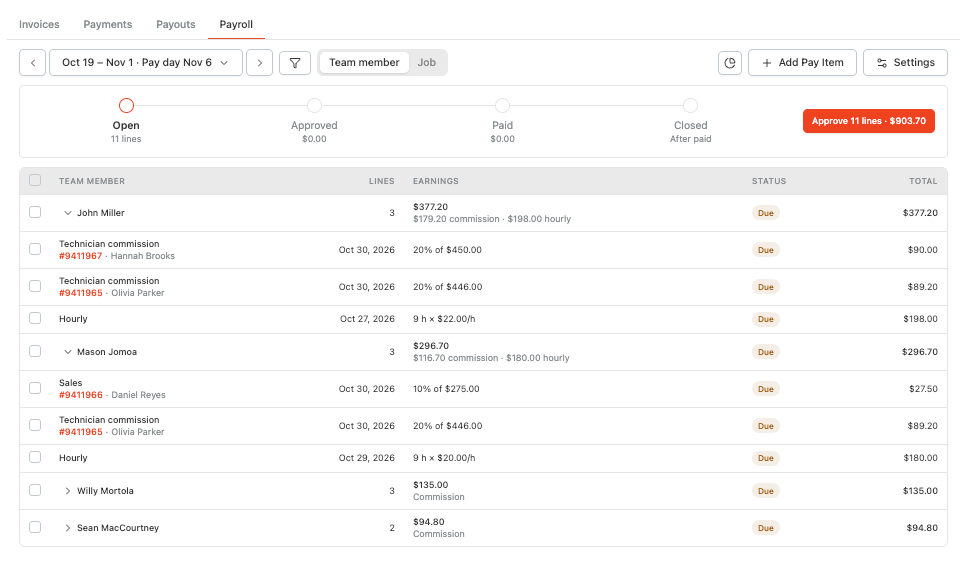
Payroll has been rebuilt from the ground up. It's faster and gives you far more control over how your team gets paid.

  • Clear pay status: every amount owed moves from Due → Approved → Paid, so you always know what's been reviewed and paid

  • Pay periods: pick Weekly, Every 2 weeks, Twice a month or Monthly. Close a period once it's paid so nothing changes, and late changes roll into the next one automatically

  • View by team member or by job: switch Group by to Job to see each job, who's paid on it and why

  • See the math: click any job number to see who earned what and why

  • Payroll alerts: get a heads-up when a period is ready to approve, pay day is tomorrow, or someone is missing a pay rate
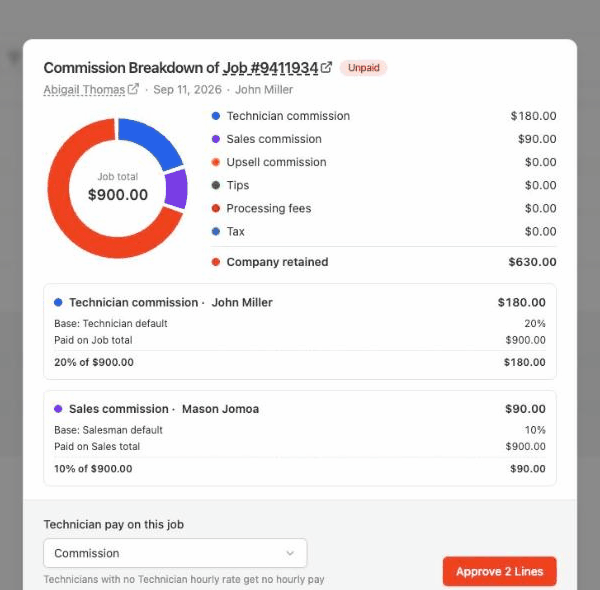
A job's Commission Breakdown

Commission Your Way

  • Flexible rates: set commission by role, person, service or plan frequency, then add rules like +5% on Holiday Lighting

  • Crews: choose per service whether a crew gets full rate each, splits evenly, or splits by time on the job

  • Upsells: choose whether upsold items count toward technician commission

  • Job overrides: pay one job's technicians hourly, commission and hourly, or nothing at all
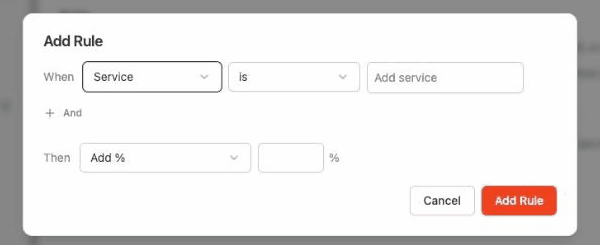
The Add Rule dialog

Bonuses, Deductions, Residuals & Clawbacks

  • Bonuses & deductions: click Add Pay Item to give a one-off deduction or bonus (like $25 for a 5-star review)

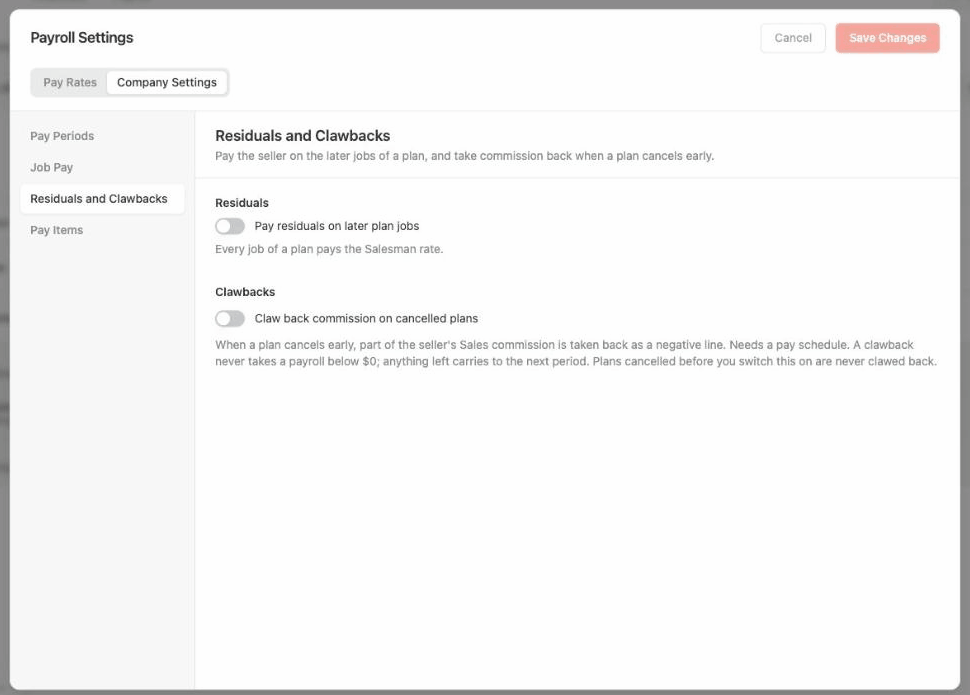
  • Residuals: keep paying the seller on a service plan's later jobs at a rate you choose

  • Clawbacks: take back sales commission when a plan cancels early, and undo it automatically if the customer is saved

Residuals and clawbacks are off by default, so nothing changes until you turn them on. Find this under your Payroll Settings.
Learn more in the Payroll guide:
https://helpcenter.getrotor.com/en/articles/1739578-payroll

Learn more about Residuals & Clawbacks:
https://helpcenter.getrotor.com/en/articles/4836556-residuals-and-clawbacks


Anytime Visits on the Schedule

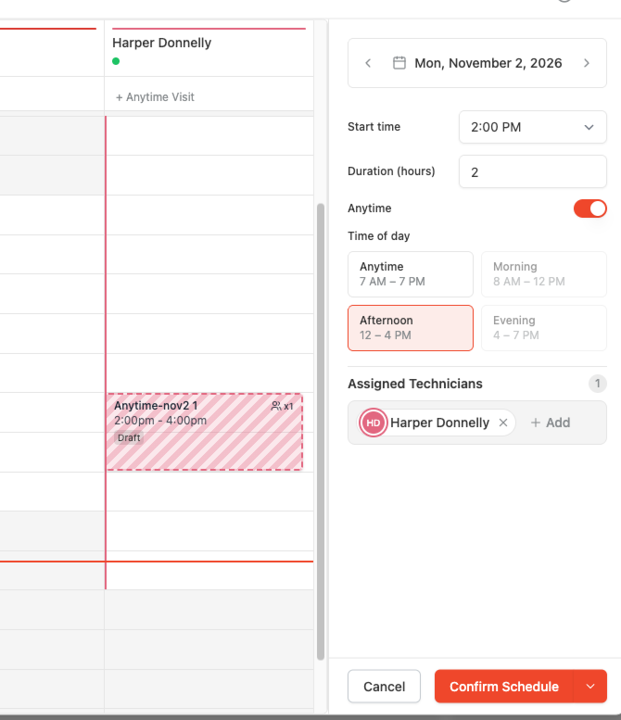
  • Put them on the schedule: place an anytime visit on a time slot for a specific tech or crew. The customer still sees it as an anytime visit, and it shows with zebra stripes so your team can spot it

  • Pick a time of day: Anytime, Morning, Afternoon or Evening, on web and mobile

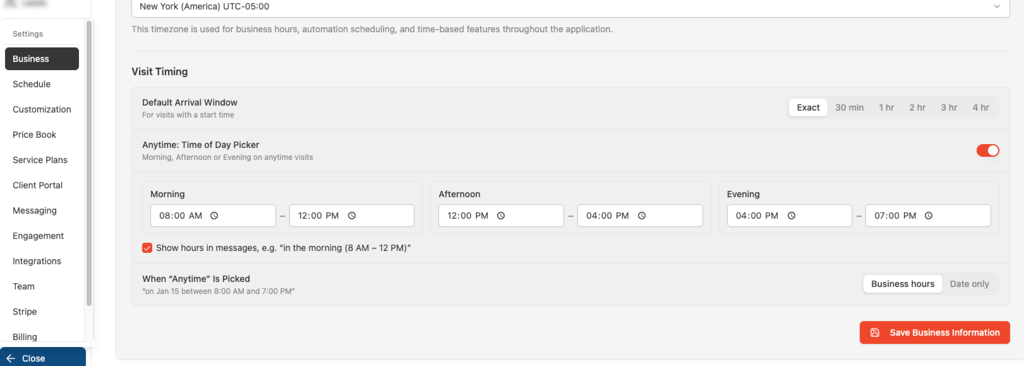
  • Control what customers hear: in Settings → Business → Visit Timing, set the hours for each time of day, show those hours in messages, choose whether "Anytime" shows business hours or just the date, and set a default arrival window (Exact, 30 min or 1–4 hr)
Learn more about Anytime Visits:
https://helpcenter.getrotor.com/en/articles/9544129-anytime-visits-time-of-day-and-scheduling


Smarter Rescheduling

Moving or scheduling a visit now gives you more control:

  • Apply to: move Only This Visit, or this visit and all following visits on the plan

  • Notify technicians / Notify customer: choose who gets a heads-up when you save

  • Confirm before you drag: dragging a visit on the web Schedule now asks you to confirm first

Options only show when they apply, based on your Messaging settings.
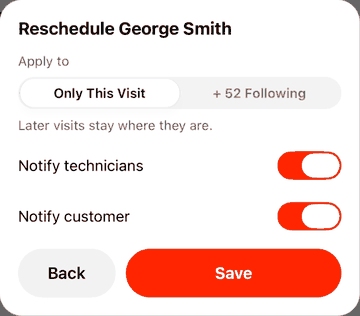
Reschedule a visit

Business Hours in Workflows

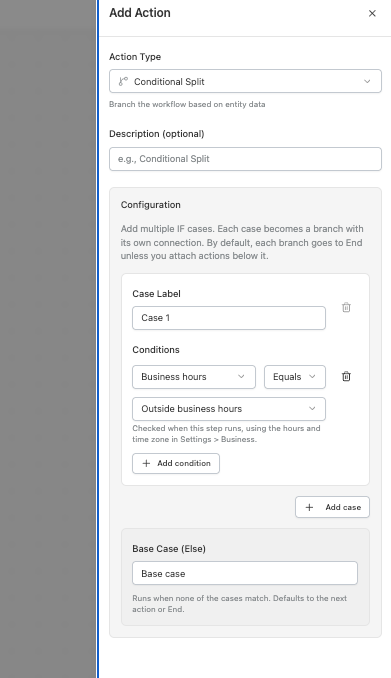
A Conditional Split can now branch on whether a step runs inside or outside your business hours, using the hours and time zone from Settings → Business. Find it under Conditional Split → Condition → Business hours.

More Updates

  • Inbound email in Rotor: customer email replies now land in your Rotor Inbox alongside texts. Set it up under Settings → Engagement (learn more)

  • Quick Contact Panel: open the side panel in any Inbox conversation to see customer details, text or email, mute, or open their portal

  • Videos on customer profiles: upload property walkthroughs to Attachments on web and mobile (

  • Turn off card payments in the Client Portal: turning off card and bank payments hides online payment, even with a payment account connected


Fixes & Polish

  • Faster clock-in: clocking in on mobile is quicker

  • Payment type on mobile invoices: see how an invoice was paid right in the mobile app

  • Partial payments: card charges, payment links and Tap to Pay now charge the remaining balance instead of the full invoice total

  • Rotor email notifications: have been redesigned and show more detail for Quote Options being approved


Review the Latest Updates

Log in to Rotor and review these updates and articles with your team. Reach out to us directly via our in-app support with any questions and we are happy to coordinate.


Keep in touch!

If you’re curious about Rotor or would like to learn more, we’d love to meet you! We feel super blessed to work alongside such a great industry and love helping our companies succeed.

👉 BOOK TIME WITH US: https://calendly.com/noah-getrotor/30min

Follow the journey on Instagram @get_rotor

Have feedback on any of these? We want to hear it. Reach out through the Discord community, the in-app chat, or email us at support@getrotor.com.

- The Rotor Team
NewImproved

Service Plan Updates: Simpler Renewals and New Pricing Options

We've rolled out a set of updates to service plans that make renewals simpler and give you more control over pricing and scheduling. Here's what's new!

Auto-Renew Continues the Same Plan

When a plan's agreement term ends, auto-renew now keeps the same plan going instead of creating a second one. Plans that had already renewed into two separate plans have been combined into one, keeping the most recent setup.


Jobs Generate 12 Months Ahead

Plans now keep creating jobs on a rolling basis, 12 months before the work happens, so you always see the next year of work.


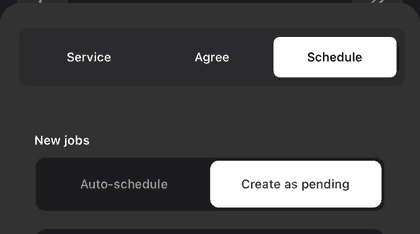
Auto-Schedule or Create as Pending

Each plan now has a New jobs setting on its Schedule tab:

  • Auto-schedule: puts new jobs straight on the schedule

  • Create as pending: lets you schedule or route them later

New plans follow whatever you choose when you first schedule them.

New jobs setting

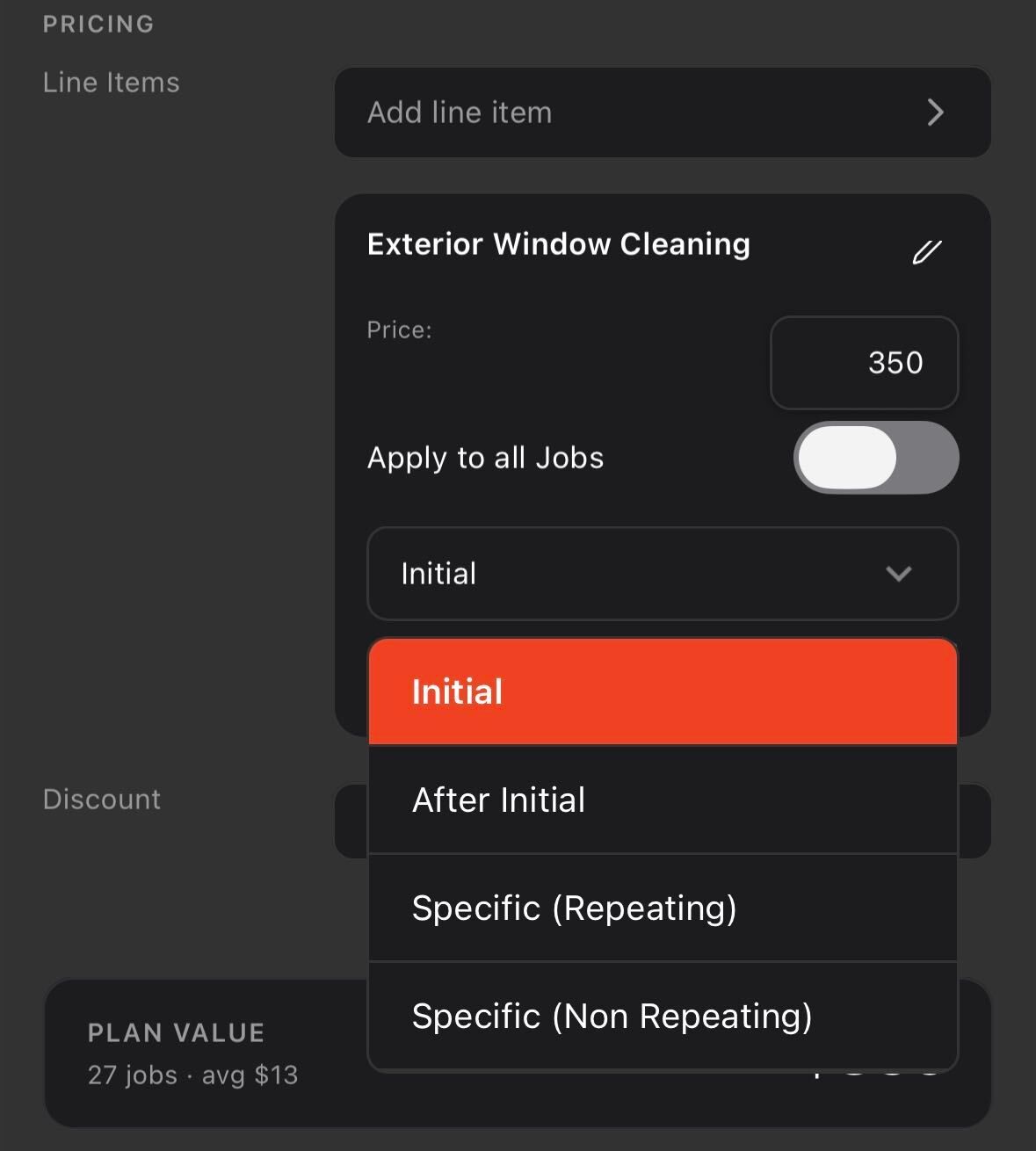
New Line Item & Discount Timing

Choose exactly which jobs a line item or discount applies to:

  • Initial Job: first job only. Won't repeat after the plan renews. Doesn't count toward ARR.

  • After Initial: every job after the first. Counts toward ARR.

  • Specific (Repeating): repeats on a pattern, like every 2nd job. Counts toward ARR.

  • Specific (Non Repeating): one specific job only. Doesn't count toward ARR.

Line item timing

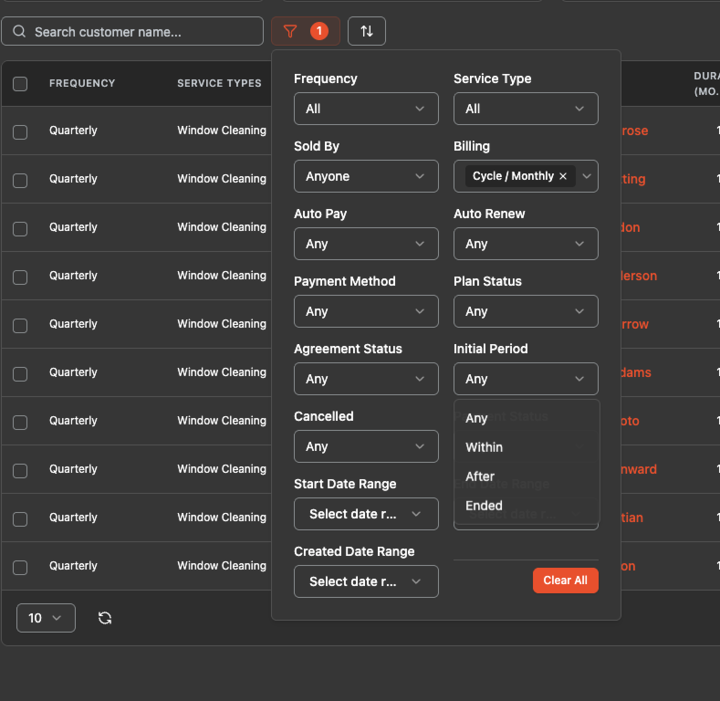
New Initial Period Filter

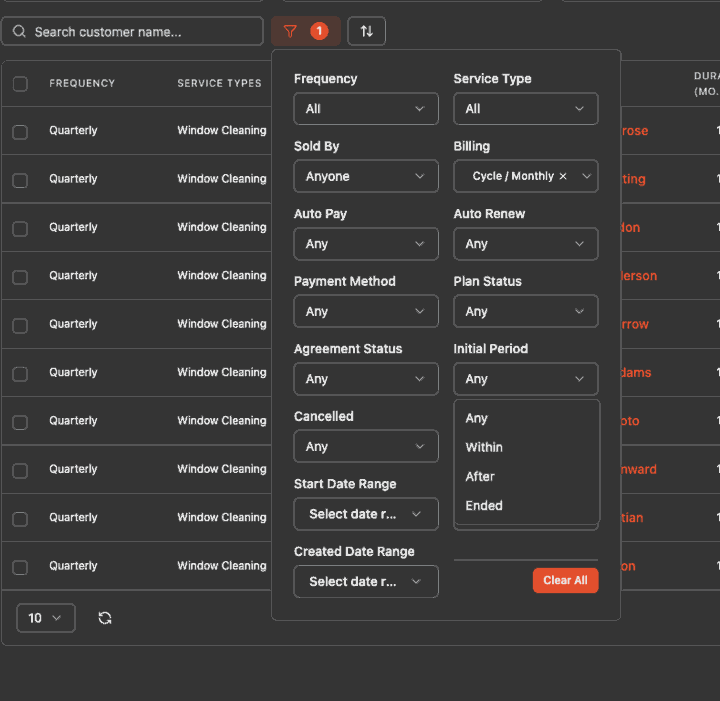
On the Service Plans page, filter plans that are Within, After, or have Ended their initial period. This replaces the old renewed / not renewed filter.

Initial Period filter

Learn more about Service Plan Updates:
https://helpcenter.getrotor.com/en/articles/2132182-service-plan-updates-renewals-job-generation-and-line-item-timing


Review the Latest Updates

Log in to Rotor and review these updates and articles with your team. Reach out to us directly via our in-app support with any questions and we are happy to coordinate.


Keep in touch!

If you’re curious about Rotor or would like to learn more, we’d love to meet you! We feel super blessed to work alongside such a great industry and love helping our companies succeed.

👉 BOOK TIME WITH US: https://calendly.com/carson-getrotor/rotor-demo

Follow the journey on Instagram @get_rotor

Have feedback on any of these? We want to hear it. Reach out through the Discord community, the in-app chat, or email us at support@getrotor.com.

- The Rotor Team
Improved

On-Site Assessments, Review Requests, AI Upgrades & More

Requests and on-site assessments are here, getting more 5-star reviews just got a lot easier and Rotor’s MCP can now do a lot more for you. Here are a few highlights since our last update!

Requests & On-Site Assessments

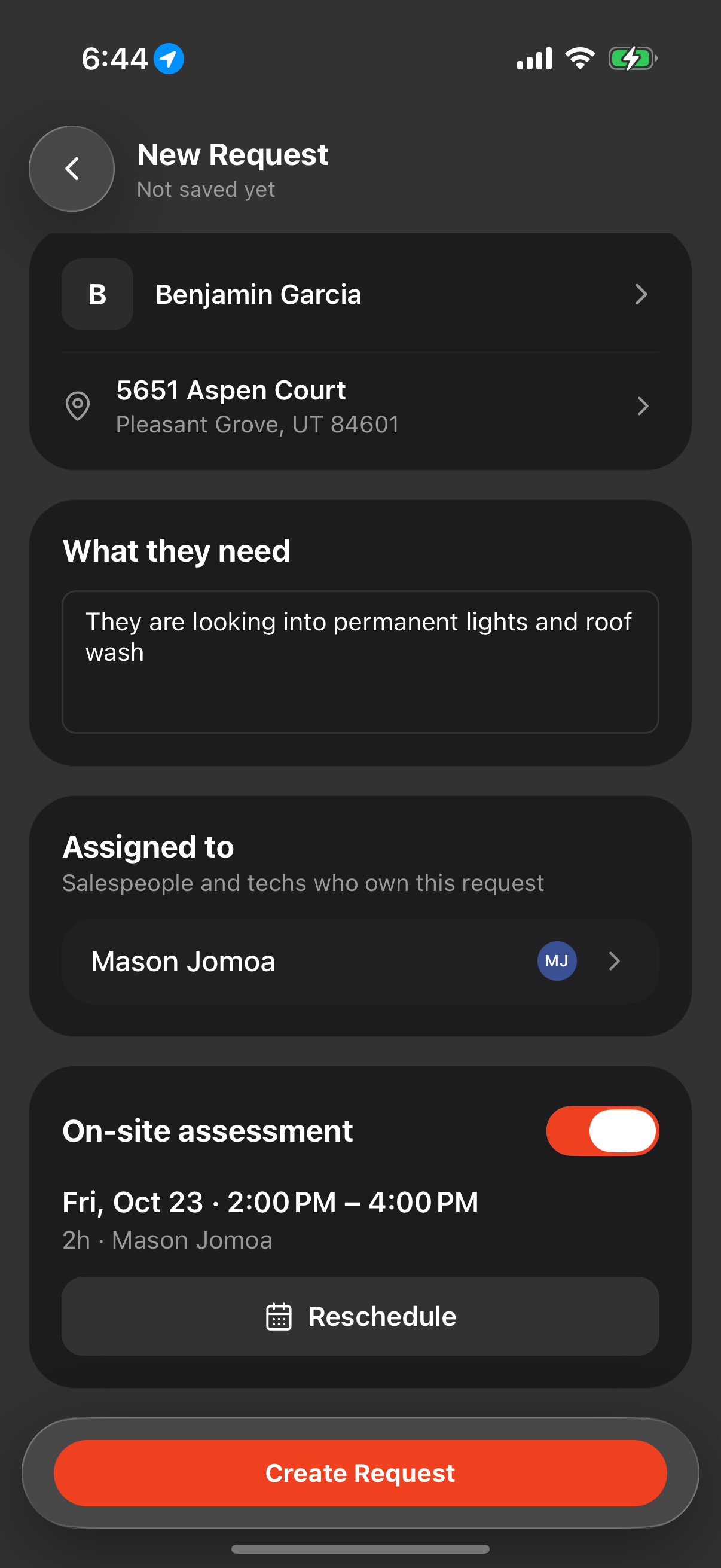
Requests give you one place to log incoming work, book an on-site assessment, and turn it into a quote, job or service plan.

  • Find them: on web, go to Service → Requests. On mobile, use the + menu or the Requests section on lead and customer pages.

  • On-site assessments: book one with anyone on your team (technicians, salespeople or office), even outside their usual hours. Assessments show on Schedule and Home, and on web you can drag them to reschedule.

  • Web forms: a form can now create a request, with the answers added to its notes. In the form's settings, set This form creates → New Request.

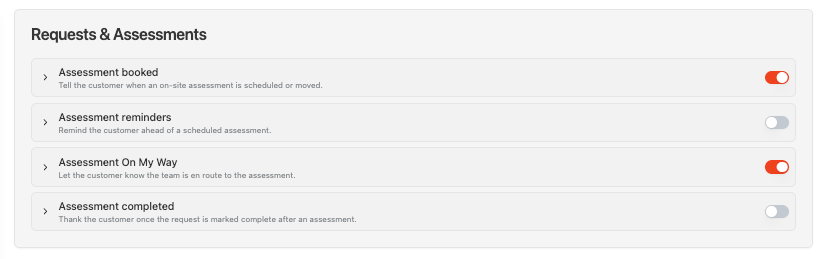
  • Client messaging: assessment booked, reminders, On My Way, and a new Assessment Completed text (off by default). Set them up at Settings → Messaging → Requests & Assessments.

Requests is on for every company, on web and in the latest mobile app update. Admins can turn it off under Features.

Learn more about Requests:
https://helpcenter.getrotor.com/en/articles/7459269-requests-and-on-site-assessments


Review Requests

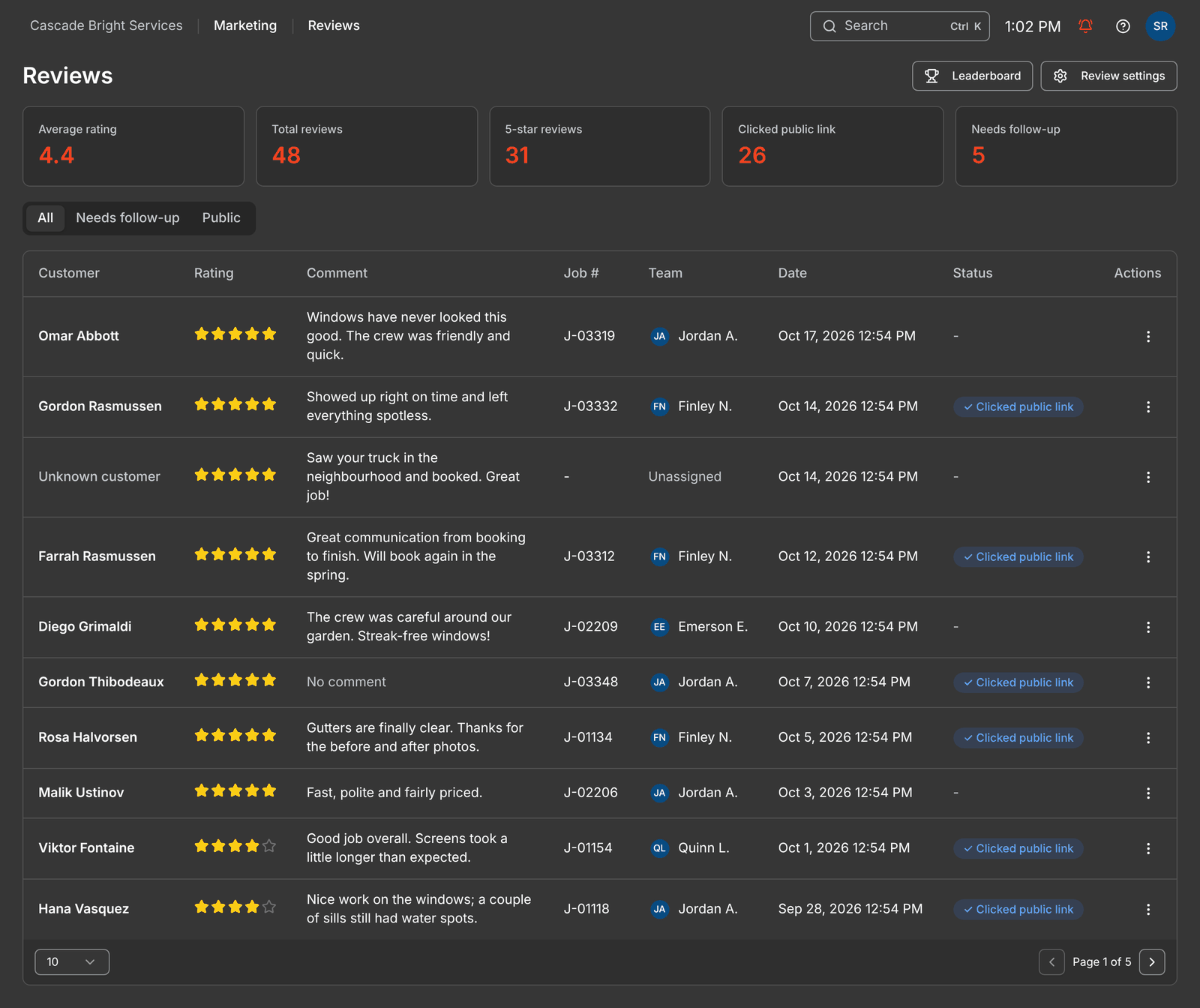
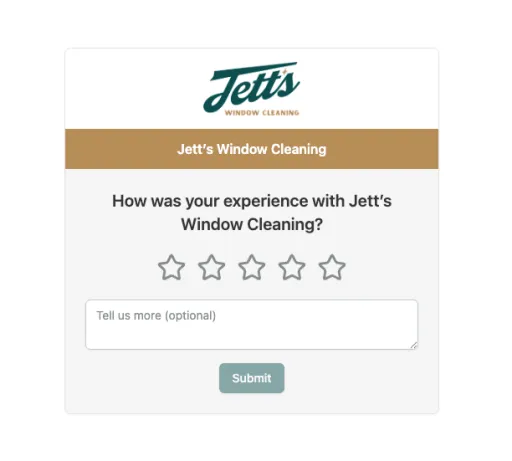
Rotor can now ask your customers for a review by text and email, collect their star rating on a page with your branding, and send happy customers on to your public review site (like Google). Lower ratings stay private so you can follow up before they turn into a bad public review.

Image


How it works:

  • Automatic: send a request after a job is completed or an invoice is paid, with a delay you choose. Requests wait for your business hours.

  • Manual: press Request Review on a job (web or mobile) or from a customer's Activity tab

  • Workflows: add a new Send review request step to any workflow

  • Reminders: a follow-up goes out if the customer hasn't rated yet (3 days by default)

You choose the star rating that gets the public link (4 stars and up by default), and how long to wait before asking the same customer again.

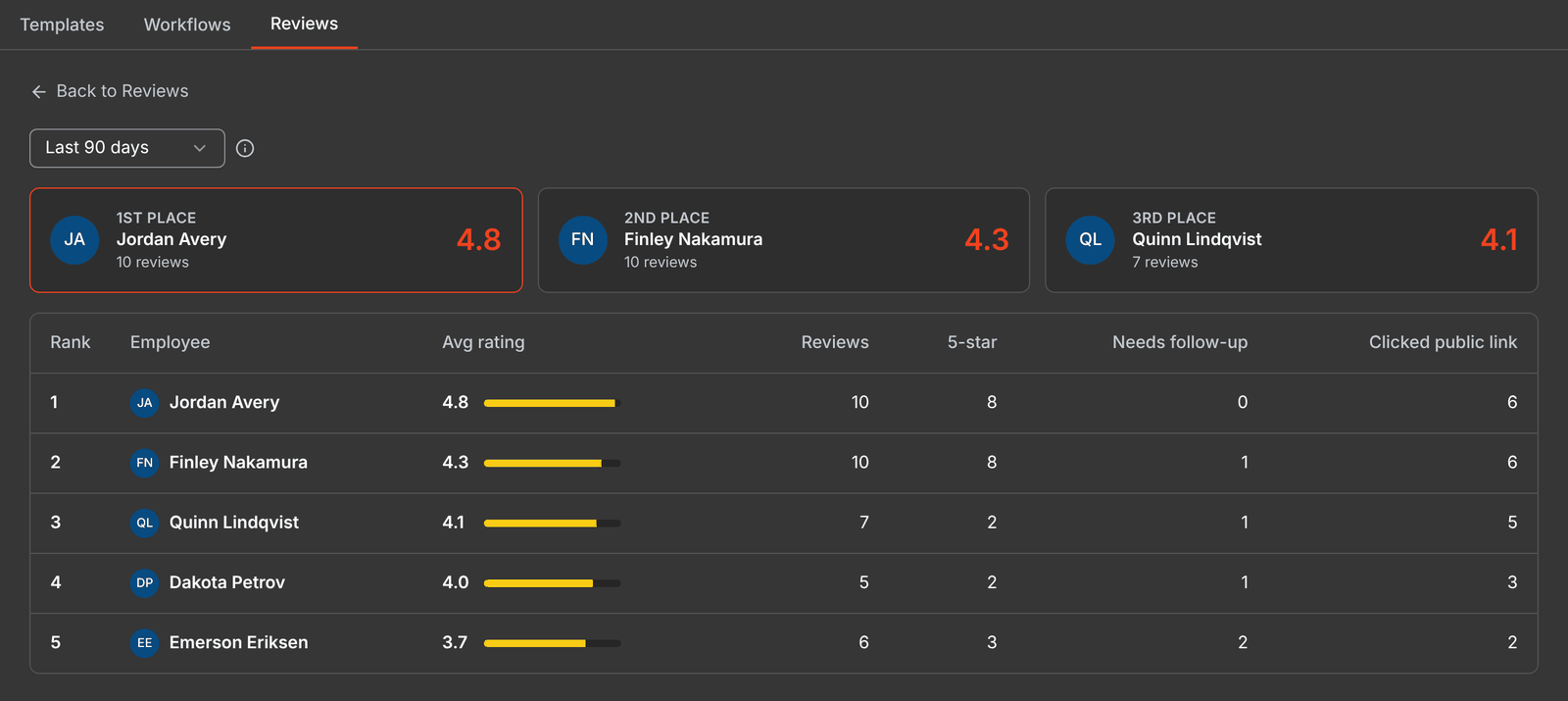
Track it all on the new Reviews page under Marketing:

  • Average rating, total reviews, 5-star reviews and reviews that need follow-up

  • Mark follow-ups as resolved

  • A Leaderboard that credits the technicians on each job, so you can see who's earning the best reviews

You also get a shareable review page link for business cards, stickers and email signatures.

Get started: go to Settings → Messaging → Reviews.

Learn more about Review Requests:
https://helpcenter.getrotor.com/en/articles/5271457-review-requests


Client Documents & Company Terms

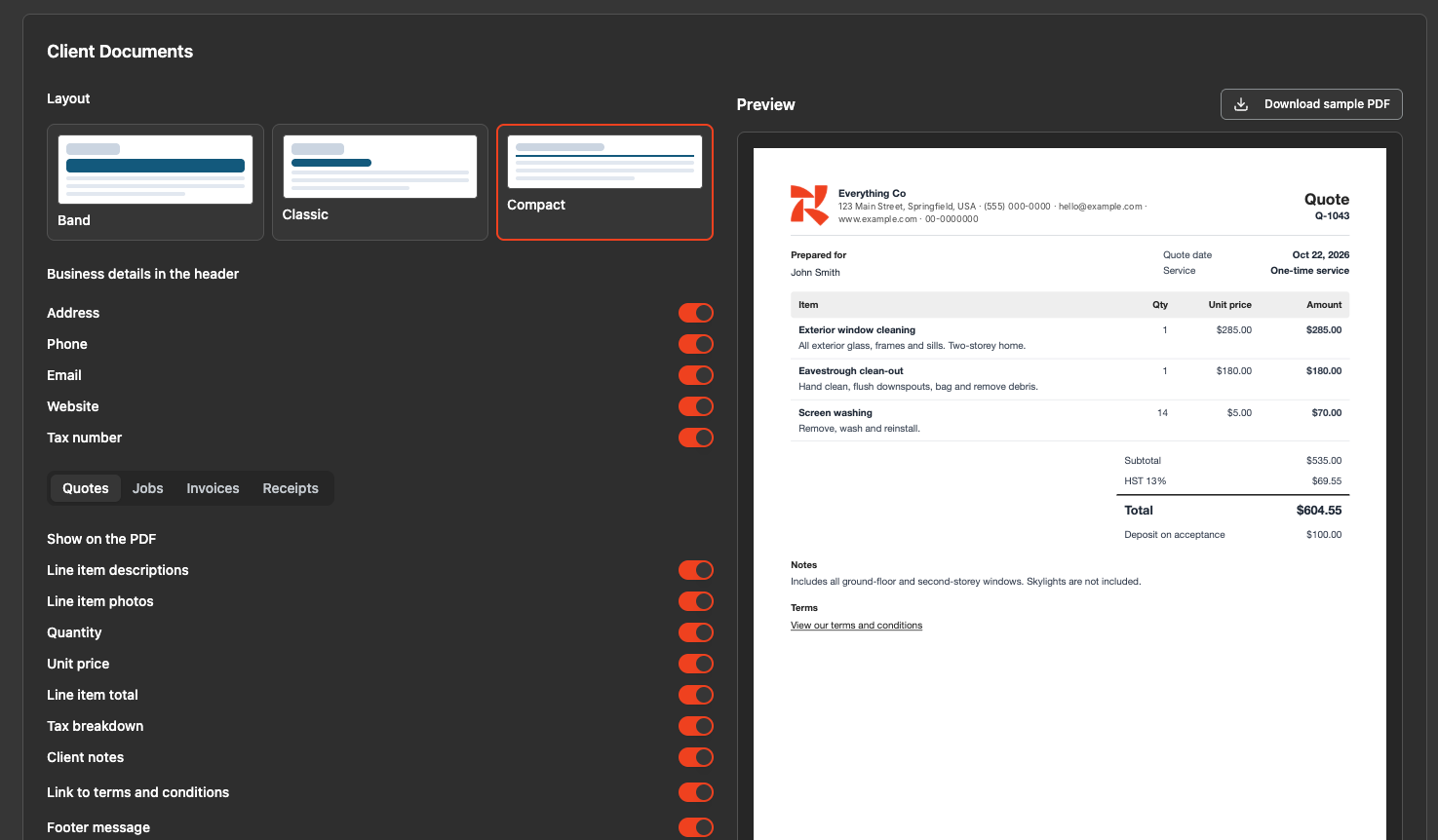
Control how your PDFs look, what's on them, and the terms your customers see, all at the bottom of Settings → Business:

  • Pick a layout: Band, Classic or Compact

  • Choose your header details: show or hide your address, phone, email, website and tax number

  • Set what shows on each document: separate settings for quotes, jobs, invoices and receipts, including line item descriptions and photos, quantity, unit price, tax breakdown, client notes, a link to your terms and a footer message

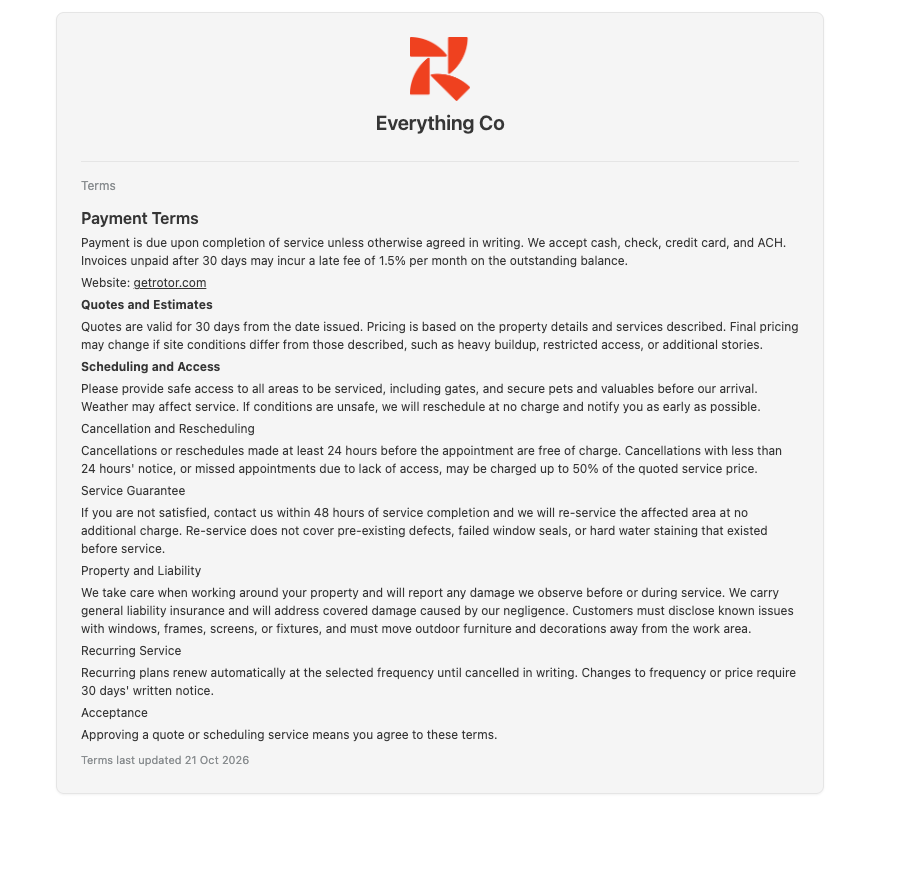
  • Company terms: add your terms once and they'll show on quotes in the client portal and on the quote PDF, with a public link customers can open anytime. No signed agreement needed. More places are coming soon.

  • Job PDFs: download a PDF of any job from the ⋯ menu on the job page, handy for sending a customer a simple confirmation

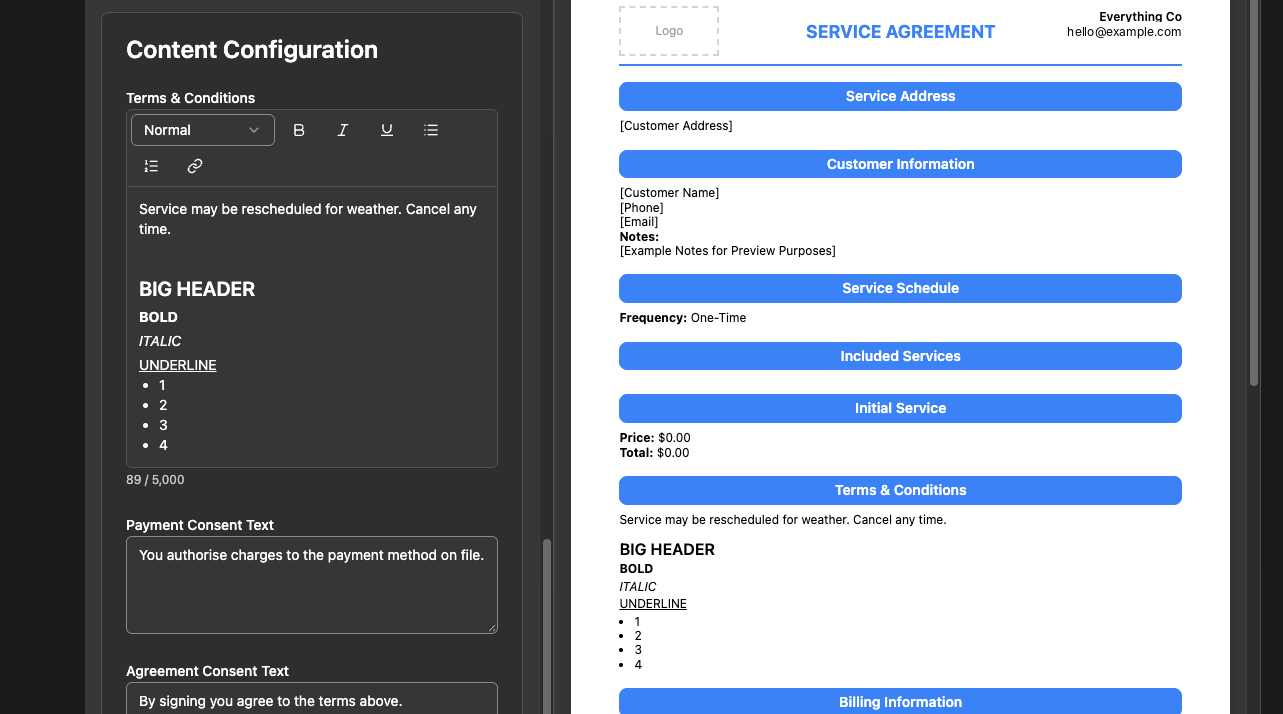
  • Agreement template terms & conditions are still separate, and now have a rich text editor so you can format headings, lists and bold text.

Settings -> Business -> Client Documents
Live Terms & Conditions Page
Settings -> Service Plans -> Agreement Templates

Rotor MCP Can Do More

Connect Rotor to Claude, Chat GPT or Grok and you can now ask it to:

  • Send things: reply to texts and emails in your inbox, and send quotes, invoices and service plan agreements

  • Jobs and scheduling: create one-time jobs, edit line items, add or reschedule visits, schedule a service plan's pending jobs, and (admins) manage crew assignments, availability and time off

  • Sales: create, edit and convert quotes, create invoices, create and activate service plans, move people through pipelines, and convert leads to customers

  • Campaigns (admins only): Rotor AI shows you a preview and waits for your OK before anything sends

Learn more about Rotor MCP:
https://helpcenter.getrotor.com/en/articles/7180081-rotor-mcp


Option Quoting Improvements

The upgrades from our last “Coming Soon” list are live:

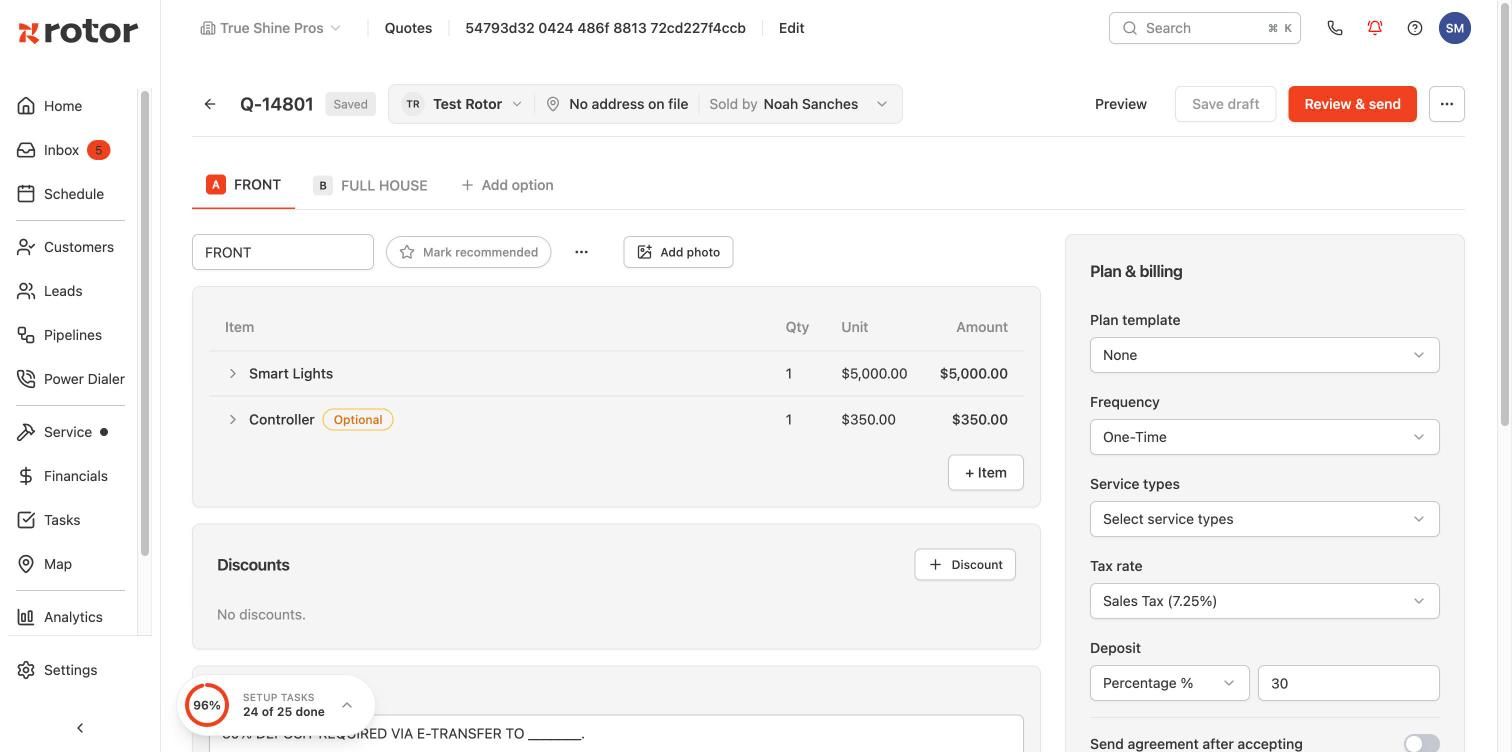
  • No option pre-selected: the portal won't pick an option for your customer unless you've marked one as recommended

  • Photos per option: add photos to the option itself, separate from line item photos

  • Notes per option: each option can have its own notes

  • Advance to agreement per option: choose which options advance to an agreement

  • Better mobile preview: an improved “View quote as Client” screen in the mobile app

Option Quoting is now turned on for Pro plan accounts. Don't see it? Reach out through in-app support.

Learn more about Option Quoting:
https://helpcenter.getrotor.com/en/articles/0112612-option-quoting


Things Moved

  • Engagement is now called Marketing, and its tabs have been reordered

  • Web Forms and Booking Forms now live under Marketing

  • Agreement Templates moved to Settings → Service Plans

Our help center articles have been updated to match.


Fixes & Polish

  • Android calling: you can now make and receive calls in the Android app, and the app no longer crashes during calls

  • Visit reschedules: reminders now send after a visit is rescheduled

  • Schedule: the week of Nov 1 (when daylight saving time ends) no longer shows two Sundays, the map now includes the last day of the pending jobs range, and job details no longer open off-screen near the bottom of the page

  • Mobile pending jobs: cycle-billed jobs no longer show $0

  • Templates stay in sync: edit a message template and every workflow using it updates. Need a one-off version? Click Customize from template.

  • Client portal: customers with non-US phone numbers can log in, and portal payment errors are fixed

  • Tap to Pay: reconnects properly if your Stripe location changed

  • Manual payments: invoices with $0 tax are no longer left “Partially paid”

  • Checklists: photos no longer get dropped


Coming Soon!

  • Payroll Overhaul: a rebuilt payroll experience

  • Service plan renewals: more control over how and when plans renew

  • Referral Program: track referrals and reward customers with credits (sneak peek in the Marketing tab)


Review the Latest Updates

Log in to Rotor and review these updates and articles with your team. Reach out to us directly via our in-app support with any questions and we are happy to coordinate.


Keep in touch!

If you’re curious about Rotor or would like to learn more, we’d love to meet you! We feel super blessed to work alongside such a great industry and love helping our companies succeed.

👉 BOOK TIME WITH US: https://calendly.com/carson-getrotor/rotor-demo

Follow the journey on Instagram @get_rotor

Have feedback on any of these? We want to hear it. Reach out through the Discord community, the in-app chat, or email us at support@getrotor.com.

- The Rotor Team
NewImproved

Earlier updates